

What is a 403 Forbidden Error in WordPress?
A 403 Forbidden Error occurs when the server understands a request but refuses to authorize it. Essentially, it means you don’t have permission to access a specific resource on your WordPress site. This error often happens due to incorrect file permissions, security plugin settings, or problems with the .htaccess file.
When this error appears, users cannot access certain pages, posts, or even the entire website. This can harm user experience and negatively impact SEO rankings. Therefore, fixing the issue quickly is essential to maintain your site’s functionality and search engine visibility.
Common Causes of the 403 Forbidden Error in WordPress
- Incorrect File Permissions:
If the file permissions on your server are too restrictive, the server may block access to certain files or directories. Typically, WordPress files should have a permission level of 644, and directories should be set to 755. - Security Plugins:
Overly aggressive security plugins like Wordfence or iThemes Security can sometimes block legitimate requests, resulting in a 403 error. - Corrupted .htaccess File:
The .htaccess file is a configuration file used by the Apache web server. If this file is corrupted or contains incorrect rules, it can trigger a 403 error. - IP Address Blocking:
If your IP address has been mistakenly blocked by your hosting provider or a security plugin, you may encounter this error. - Server Configuration Issues:
Misconfigured server settings or firewall rules can also lead to a 403 Forbidden Error.
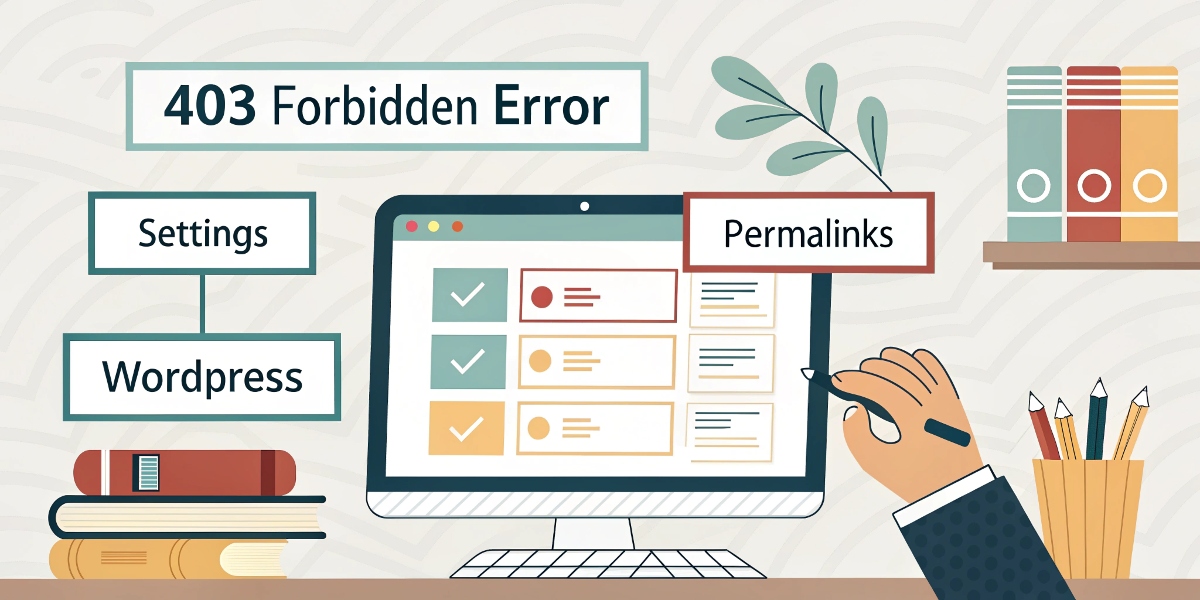
How to Fix the 403 Forbidden Error in WordPress
1. Check File Permissions
Use an FTP client like FileZilla or your hosting control panel to verify and adjust file permissions. Ensure files are set to 644 and directories to 755.
2. Disable Security Plugins
Temporarily deactivate your security plugins to see if they are causing the issue. If the error resolves, reconfigure the plugin settings to avoid false positives.
3. Restore the .htaccess File
Rename your existing .htaccess file to something like .htaccess_old and create a new .htaccess file with the default WordPress code:
# BEGIN WordPress
<IfModule mod_rewrite.c>
RewriteEngine On
RewriteBase /
RewriteRule ^index\.php$ - [L]
RewriteCond %{REQUEST_FILENAME} !-f
RewriteCond %{REQUEST_FILENAME} !-d
RewriteRule . /index.php [L]
</IfModule>
# END WordPress
4. Check for IP Blocking
Contact your hosting provider to ensure your IP address hasn’t been blocked. You can also check your security plugin logs for any blocked IPs.
5. Review Server Configuration
If you’re on a VPS or dedicated server, review your server logs and configuration files for any misconfigurations.

If you’re still experiencing issues with the 403 Forbidden Error on your WordPress site, don’t hesitate to reach out for professional assistance. Our team of experts is here to help you resolve any technical challenges and ensure your website runs smoothly.
Contact us today at support@smartwebuilders.in for more information and personalized support!
